
Click Install on the HubSpot App Marketplace
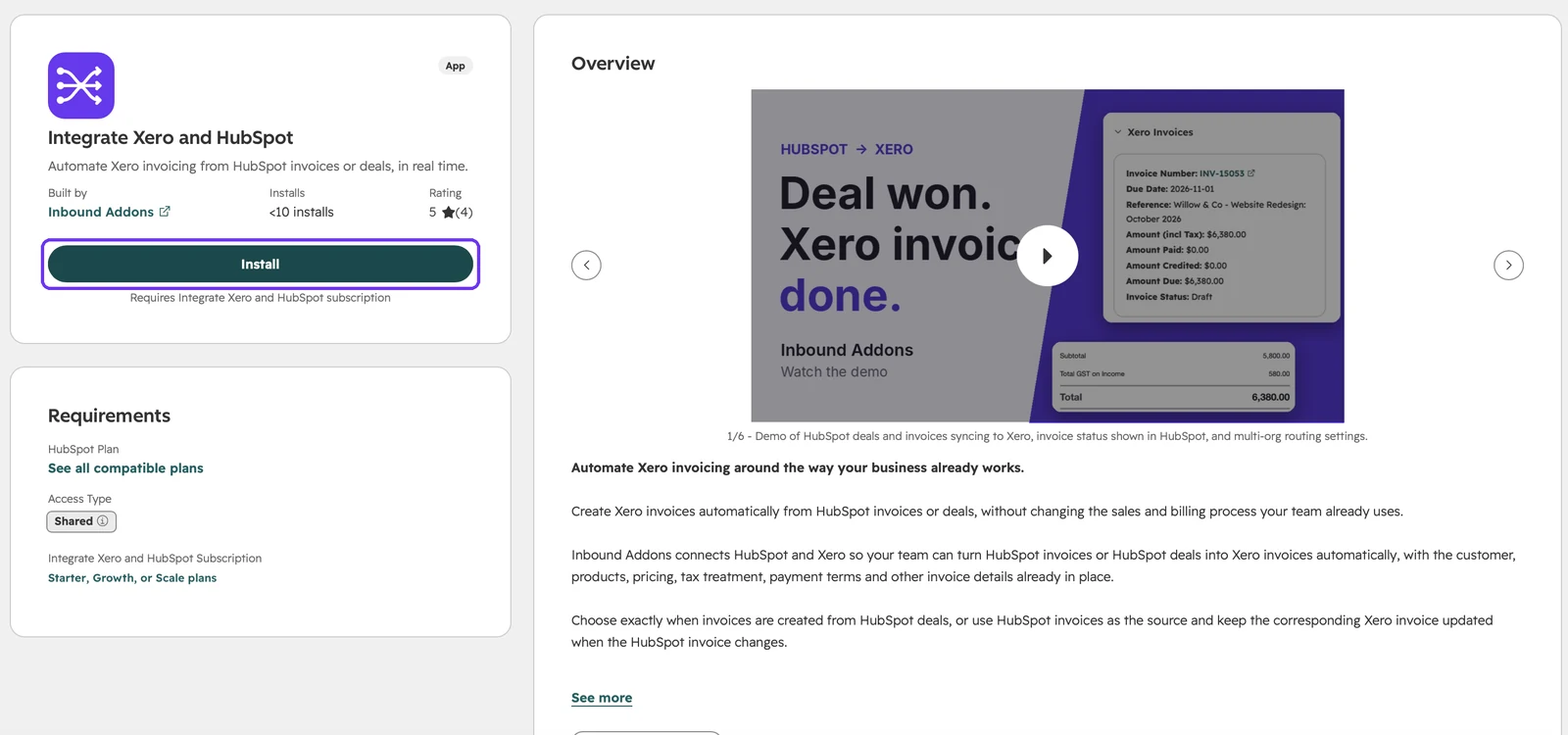
Open the Integrate Xero and HubSpot listing in the HubSpot App Marketplace and click Install.
Setup guide
Follow these steps to install Integrate Xero and HubSpot, verify your email, connect your HubSpot account, then connect Xero and choose how your invoices are created. Each step shows exactly what you'll see on screen.
Before you start
Where are you starting from?
Part 1
Create your Inbound Addons account, or sign in to your existing one, using a one-time code. There's no password to remember.
Open the Integrate Xero and HubSpot listing in the HubSpot App Marketplace and click Install.
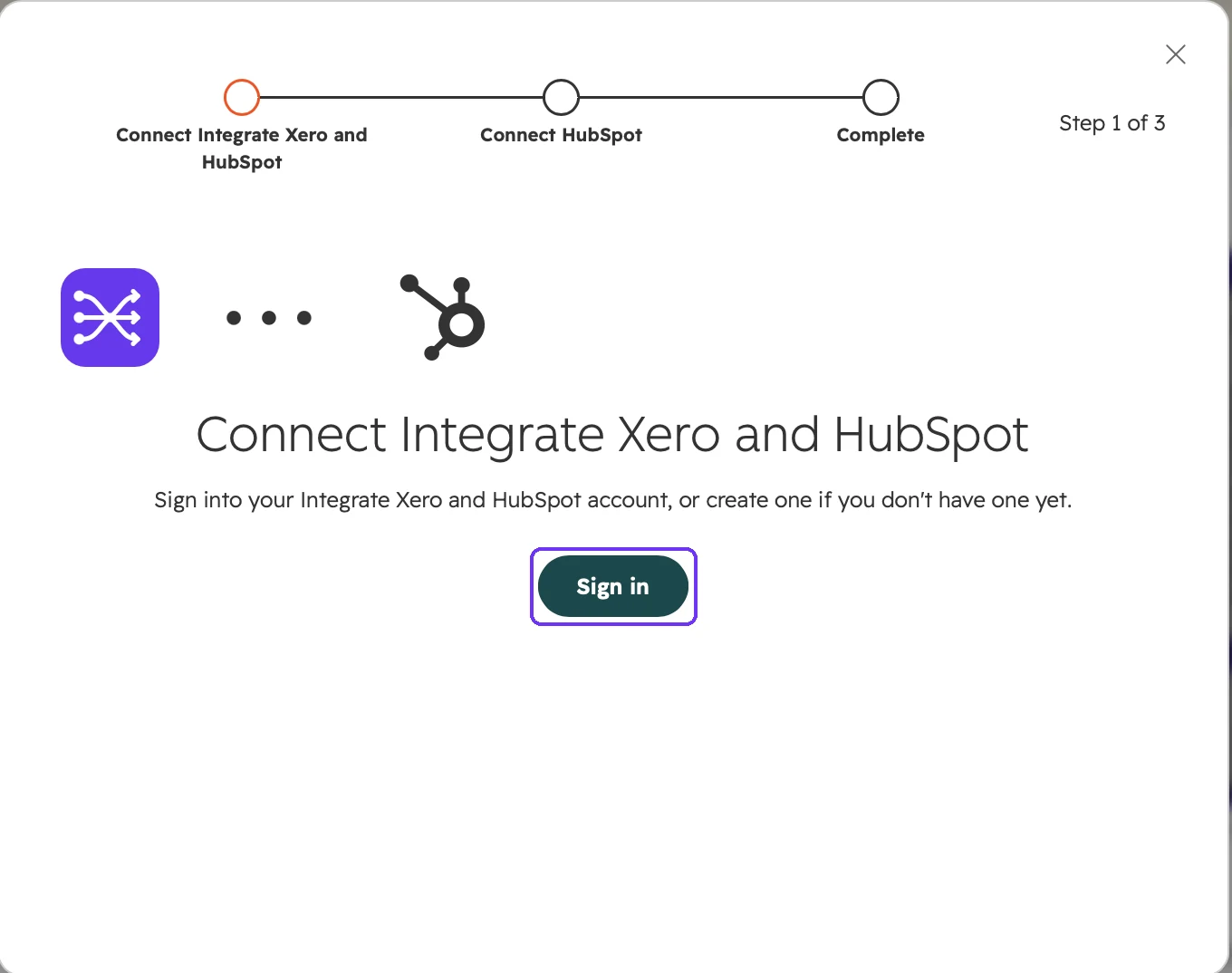
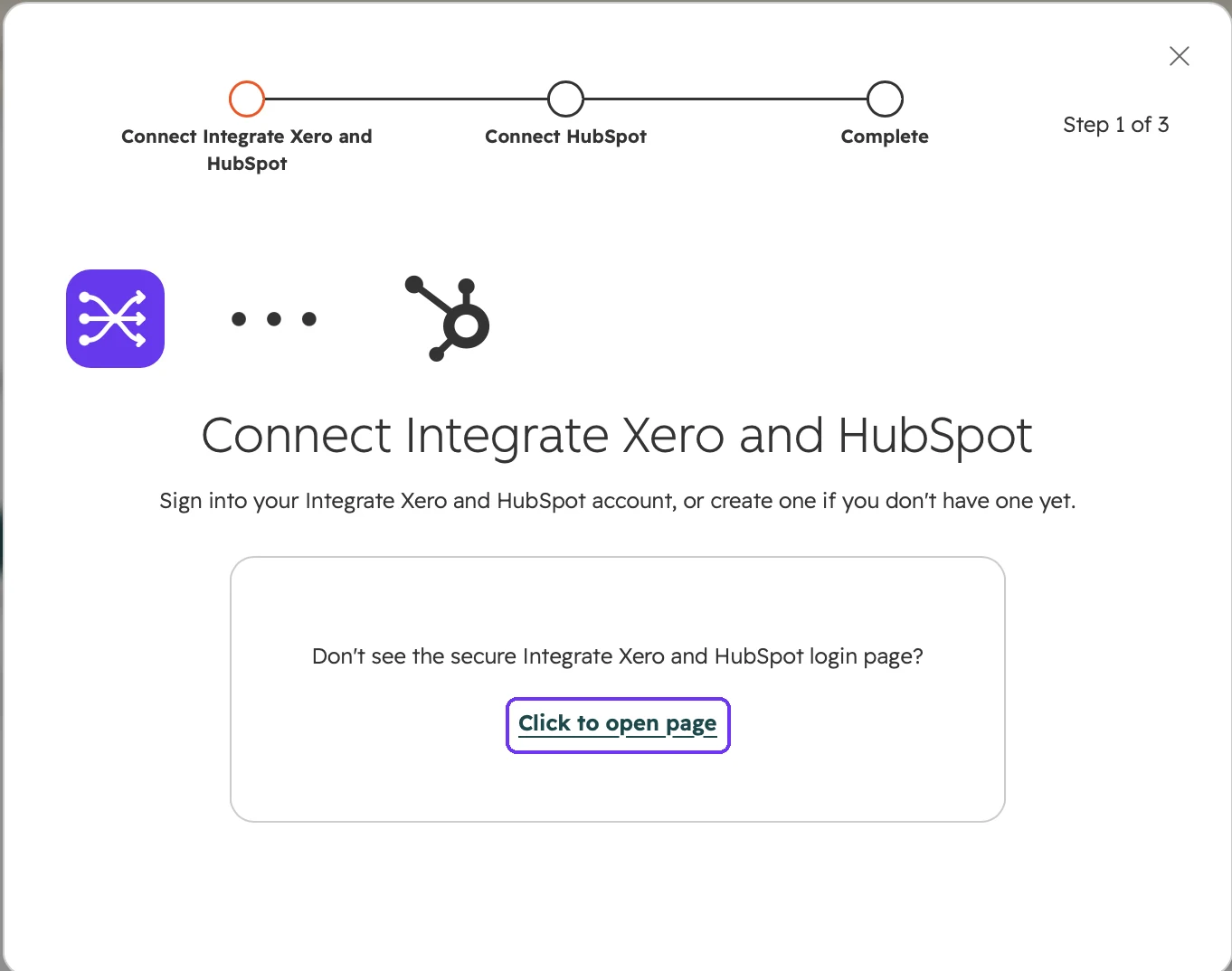
HubSpot opens a three-step installer. On Connect Integrate Xero and HubSpot, click Sign in. This opens our secure sign-in page at inboundaddon.com in a new window.
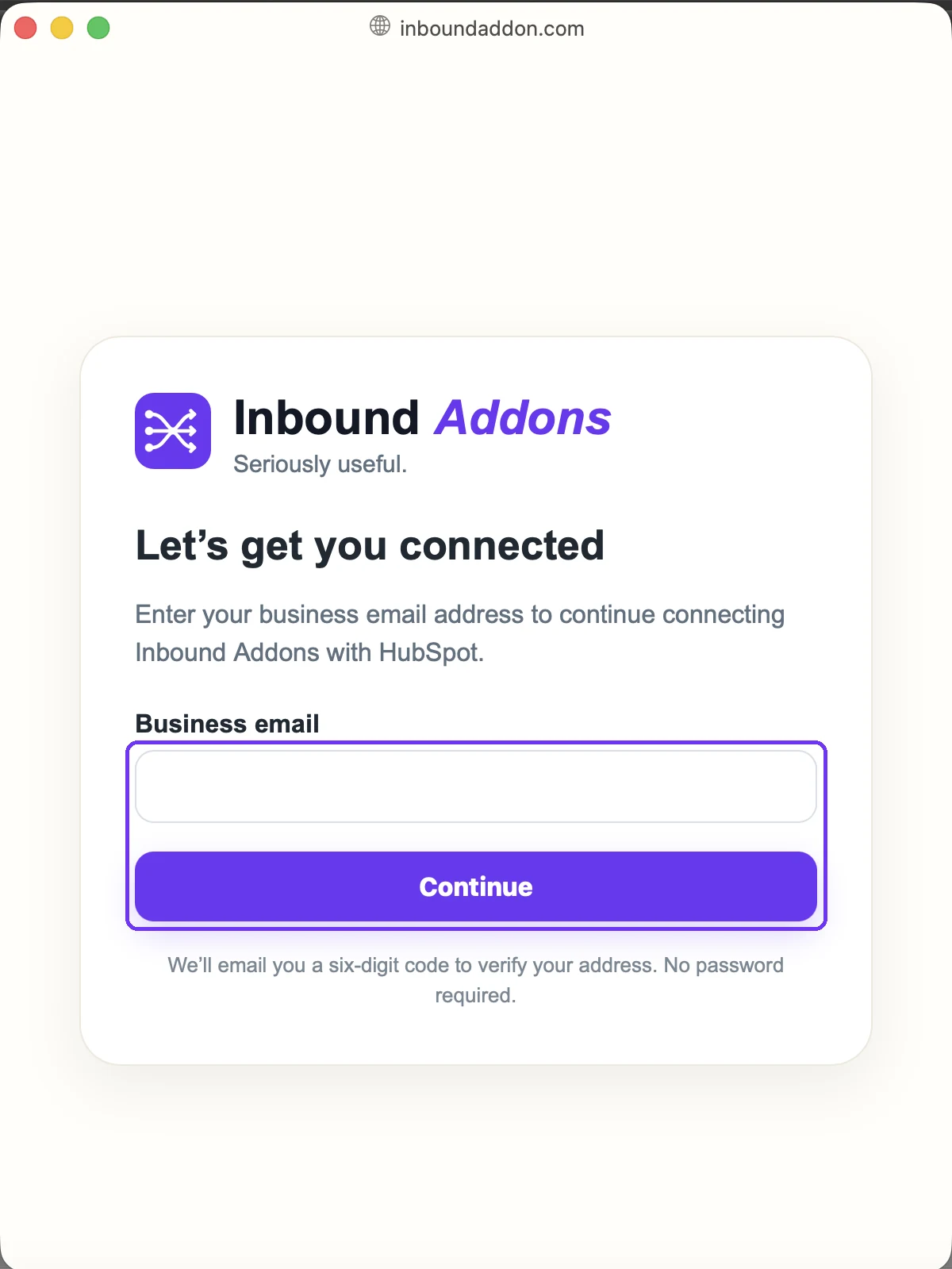
Type your work email address and click Continue. If you're new to Inbound Addons, this creates your account. If you already have one, it signs you in.
Use a business email. Personal email addresses such as Gmail, Yahoo or Outlook.com can't be used.
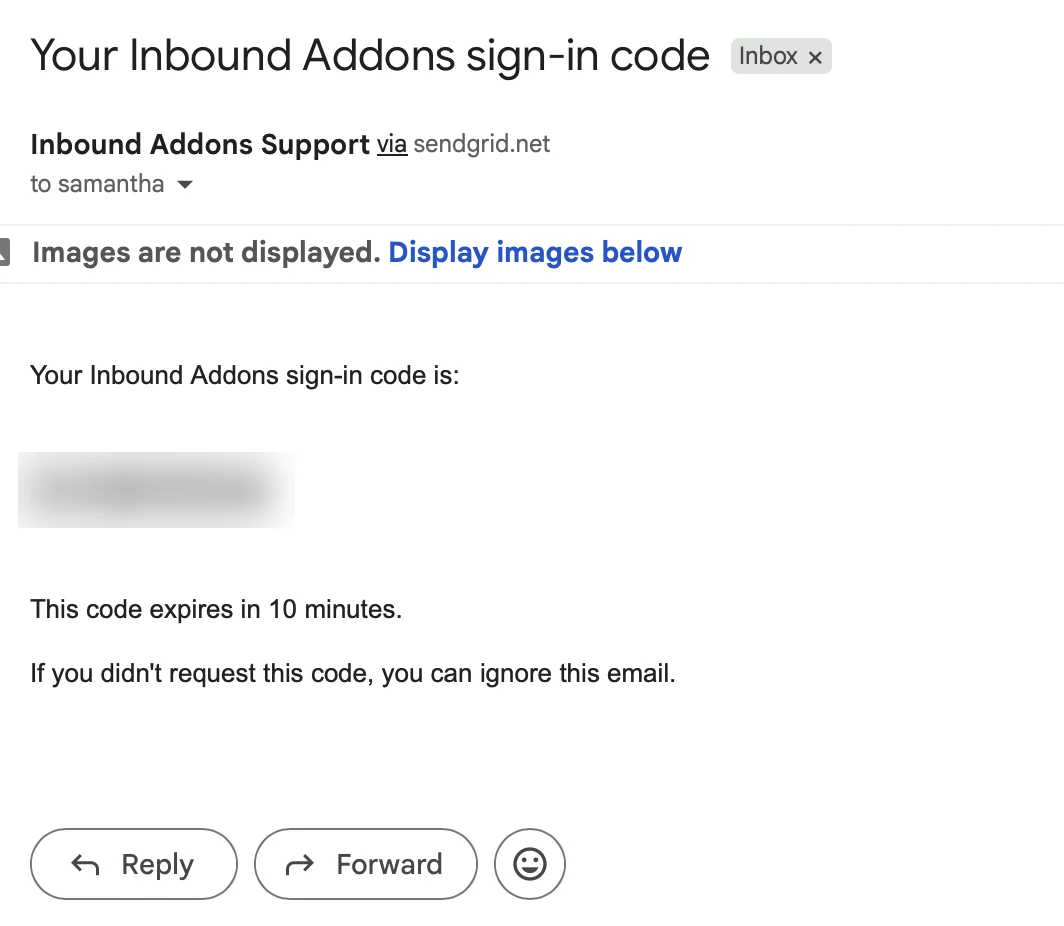
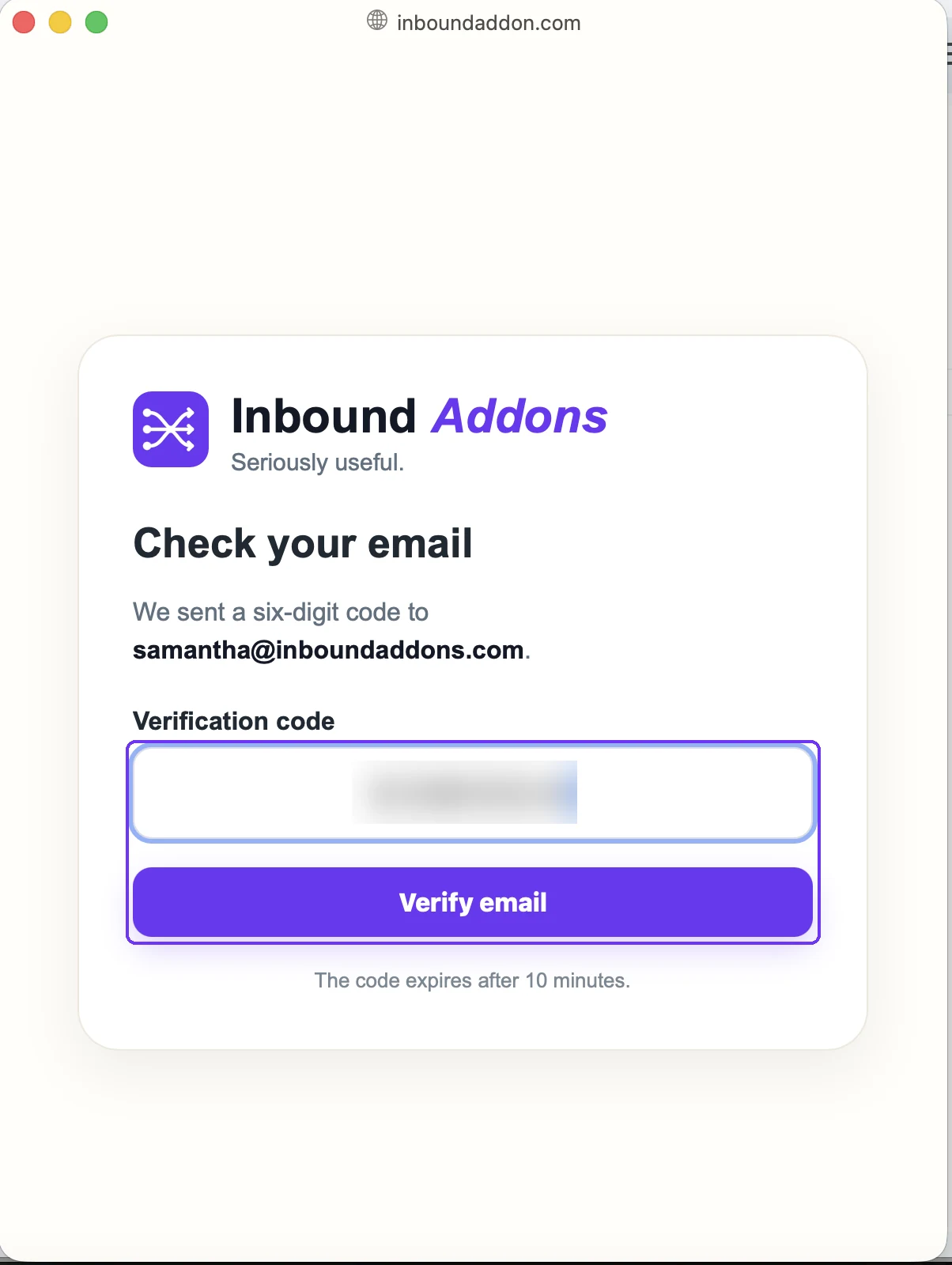
Check your inbox for an email from Inbound Addons Support with the subject Your Inbound Addons sign-in code. Copy the six-digit code. It expires after 10 minutes.
Can't find the code entry page when you come back from your email?
Go back to the HubSpot installer and click Click to open page to reopen it.
Paste the code into Verification code and click Verify email.
Part 2
Approve the connection so Inbound Addons can read your deals and invoices and show Xero invoice details in HubSpot.
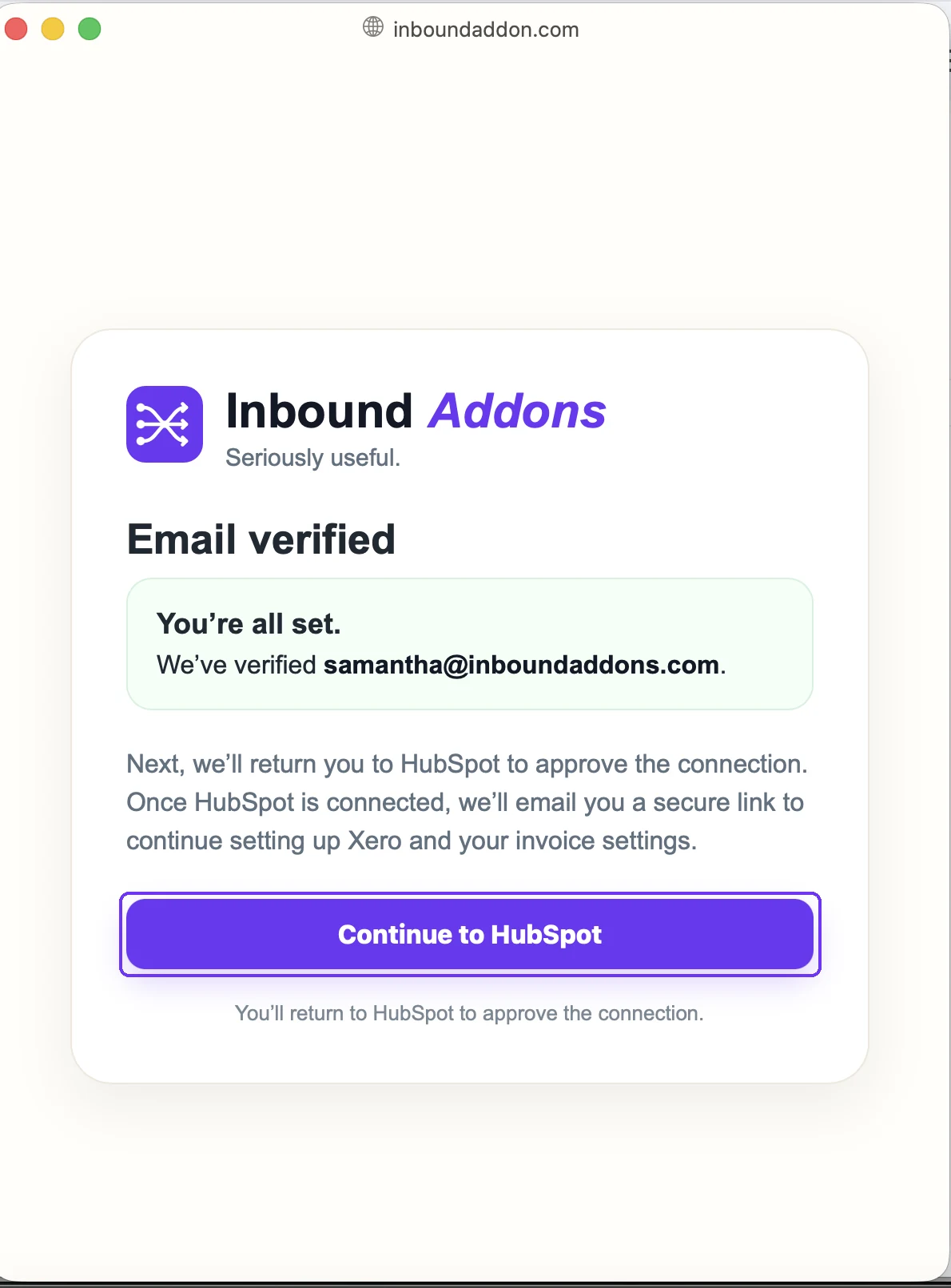
When you see Email verified, click Continue to HubSpot to return to the installer.
If HubSpot asks you to sign in, sign in. Then scroll through the list of permissions Integrate Xero and HubSpot needs in your HubSpot account.
Why does it need these permissions?
They let the integration read your deals, line items and invoices, create invoices, and show Xero invoice details on your HubSpot records. Inbound Addons only uses them to run the invoicing you set up.
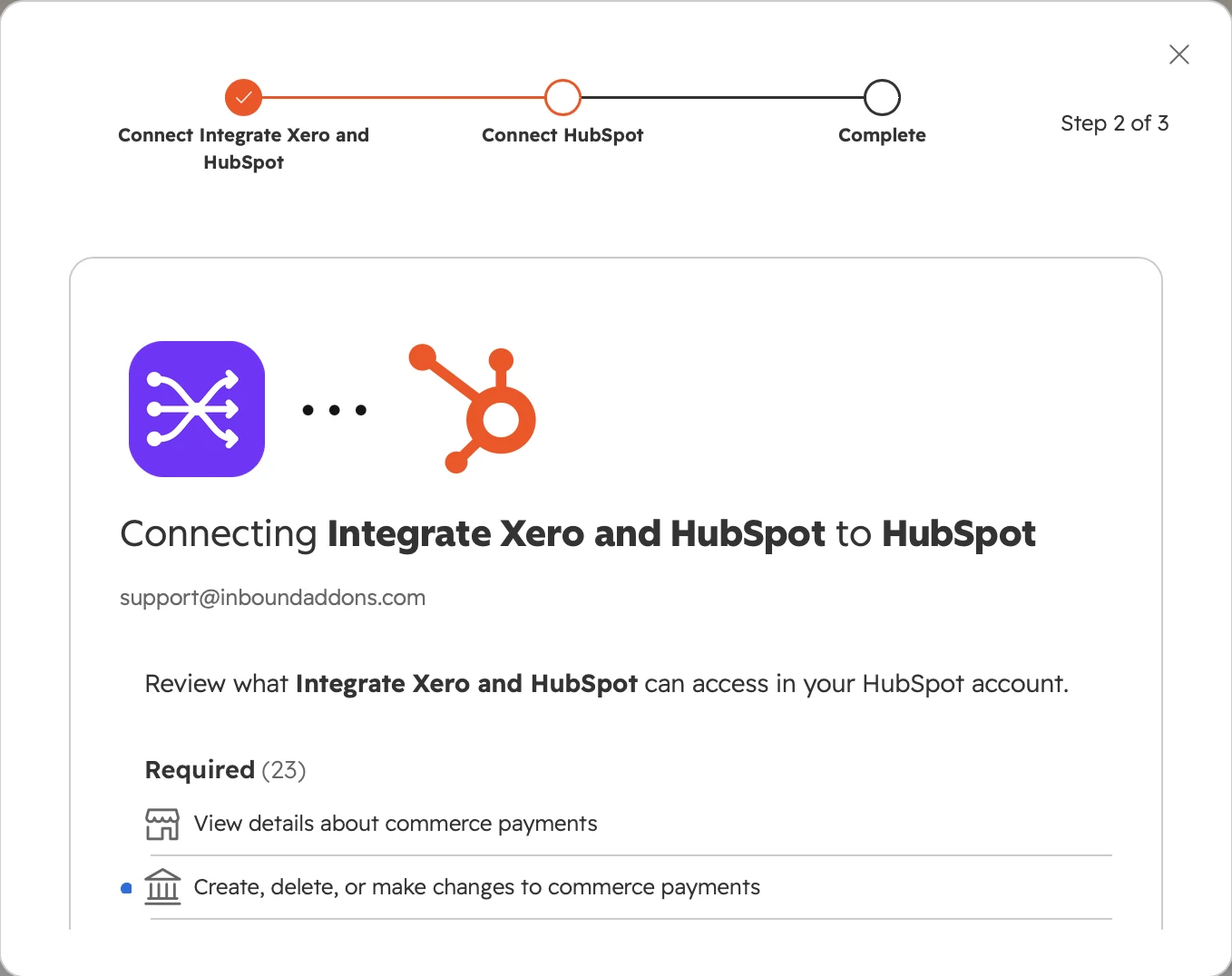
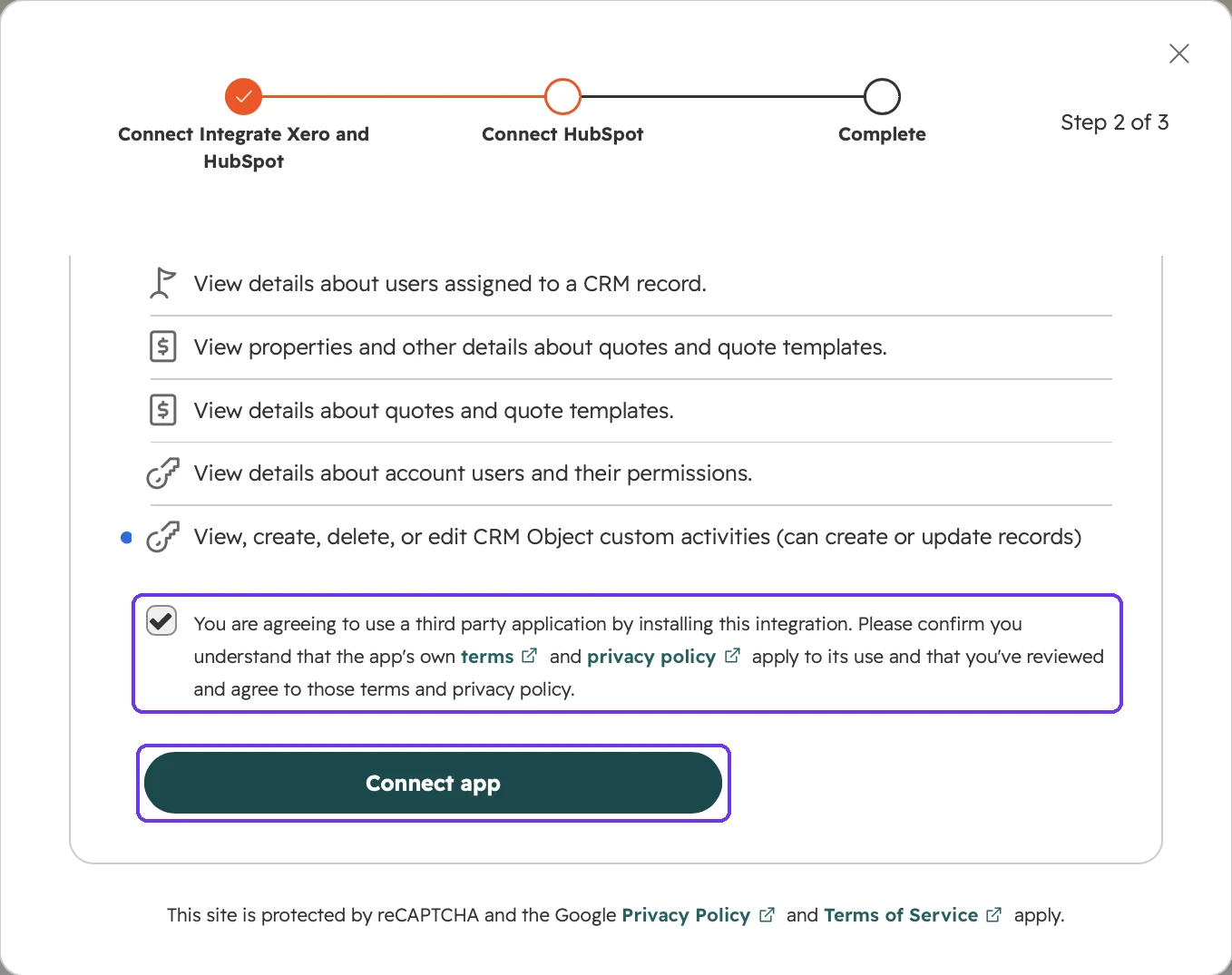
At the bottom of the list, tick the box to confirm you've reviewed and agree to the app's terms and privacy policy, then click Connect app.
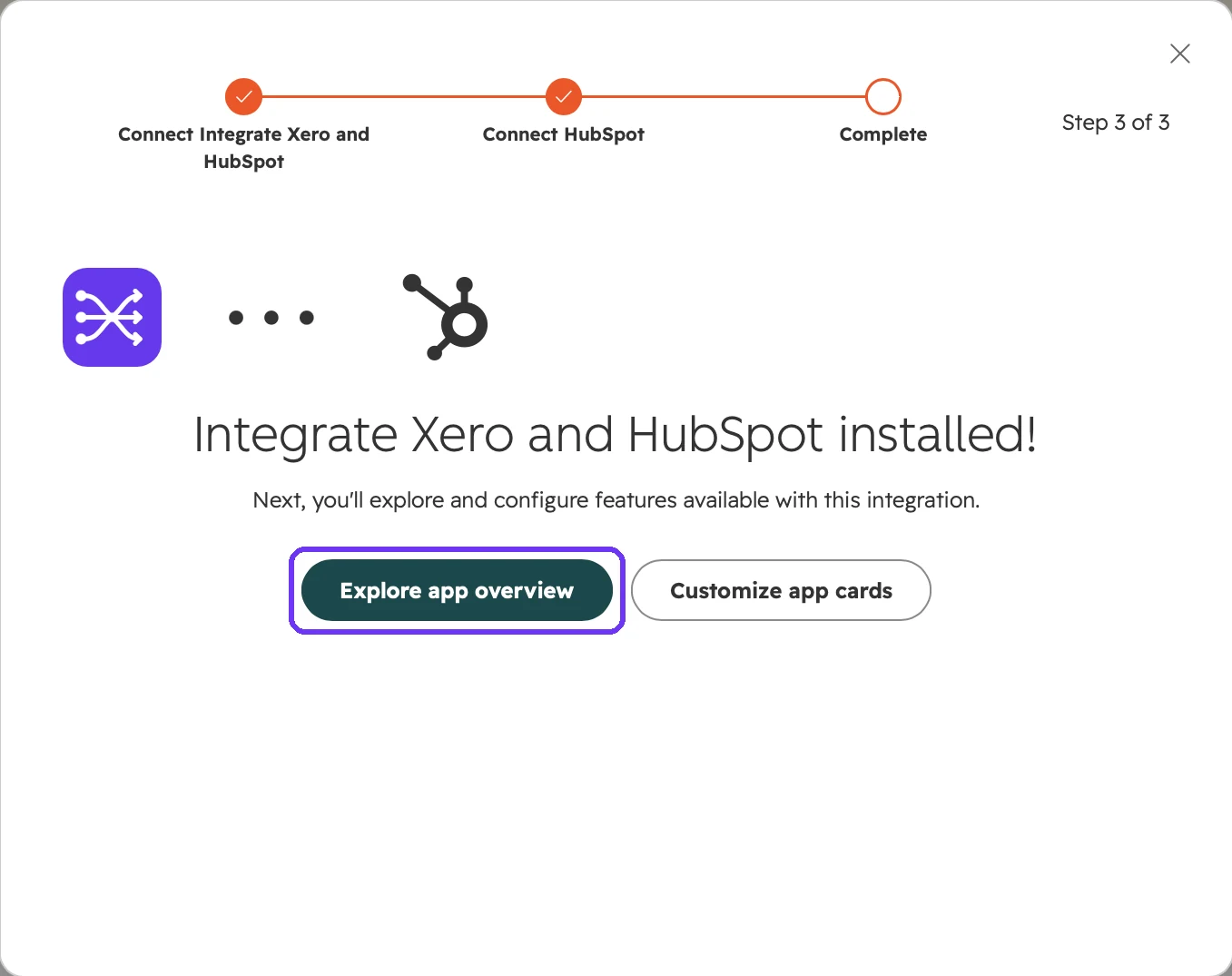
You'll see Integrate Xero and HubSpot installed! Click Explore app overview.
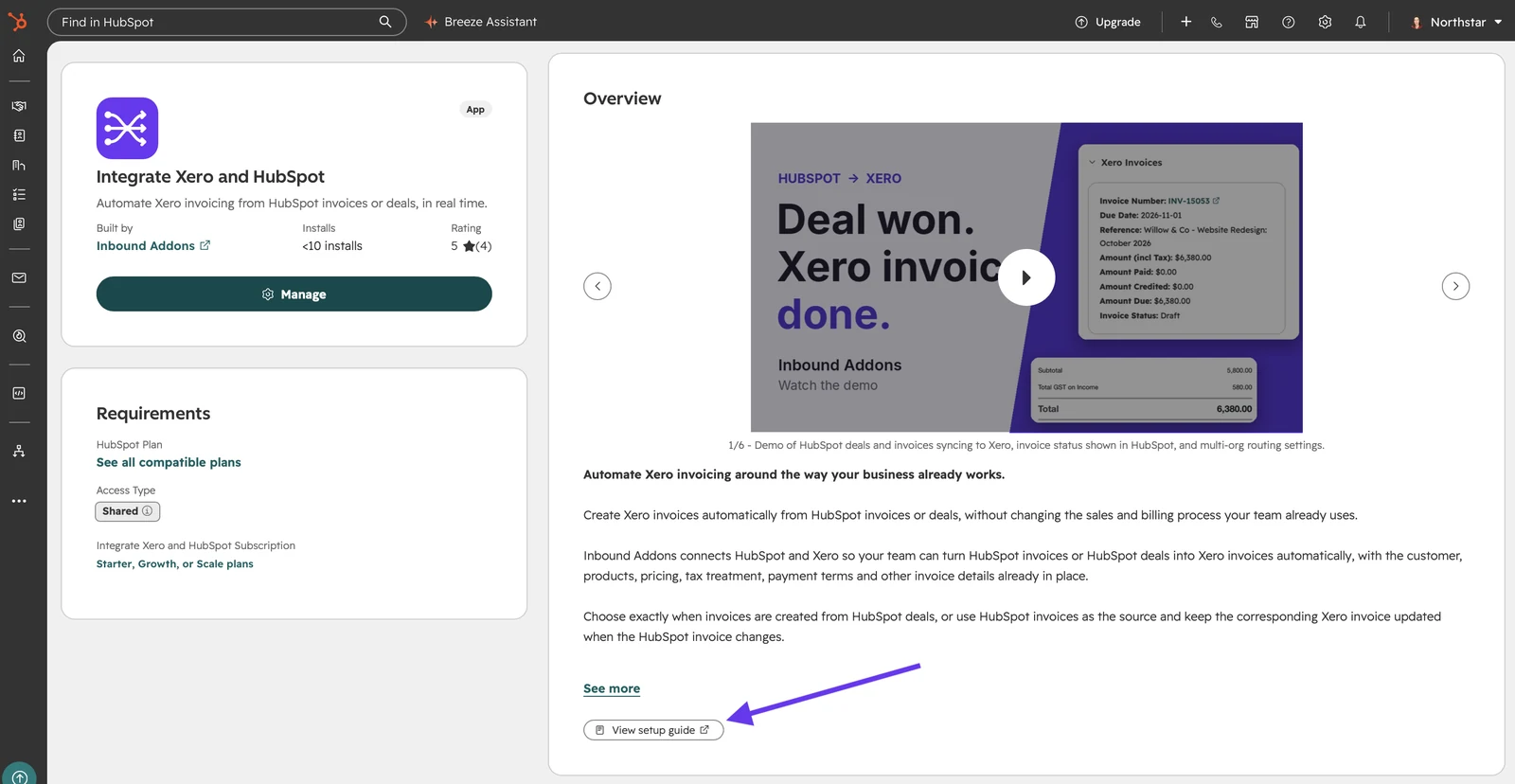
Come back to this guide any time. On the app overview, click View setup guide at the bottom of the Overview section.
Part 3
Once HubSpot is connected, we email you a secure link to continue. Use it to connect the Xero organisation where your invoices will be created.
Check your inbox for an email with the subject Continue setting up Inbound Addons. It says HubSpot is connected and your trial is ready. Click Continue setup.
Link expired? The link works for 24 hours. If it has expired, go to inboundaddon.com/account/login.php, choose Forgot password?, and follow the email to set a password and sign in.
You'll land on your Connections page. HubSpot shows as Connected. In the Xero card, click Connect Xero organisation, sign in to Xero if asked, choose the organisation you want to create invoices in, and allow access.
Back on the Connections page, your Xero organisation appears in the Xero card marked Connected. If you have the Scale plan, you can connect a second Xero organisation by clicking + Connect another Xero organisation.
Part 4
Tell Inbound Addons how your Xero invoices should be created. You can change any of these later.
On the Connections page, scroll to the Integration Settings card and click Add Integration Settings. (Once saved, this button reads View/Update Integration Settings.)
Under Invoice creation, answer How should Xero invoices be created? You can create invoices from HubSpot deals, from HubSpot invoices, or from both. Choose No, turn off Xero invoice creation at any time to pause invoicing without disconnecting.
If you create invoices from deals, add the Deal stage invoice triggers: the deal stages that should create an invoice. If you don't add any, invoices are created when a deal enters HubSpot's built-in Closed Won stage. No HubSpot workflows are needed.
Still under Invoice creation, choose the defaults used for every new invoice:
If you've connected more than one Xero organisation (Scale plan), use Xero organisation routing to send invoices to the right organisation. Choose a default Xero organisation for anything that doesn't match, then add routing rules based on HubSpot CRM properties, for example Company / Country = Australia. If you only have one Xero organisation, you can skip this step.
Scroll to the bottom and click Save settings. You'll see Your integration settings are complete when everything needed for invoice automation is in place. Your 14-day free trial is running, and invoices are created automatically from here.
That's the setup finished. Using the app day to day, and disconnecting or uninstalling it, will be added to this guide shortly.
Troubleshooting
Inbound Addons accounts need a business email address. Personal addresses such as Gmail, Yahoo or Outlook.com can't be used. Try again with your work email.
The sign-in page opens in its own window, which can end up behind HubSpot. Go back to the HubSpot installer and click Click to open page to reopen it (see step 4).
Codes expire 10 minutes after they're sent. Go back to the sign-in page and enter your business email again to get a new code.
They let the integration read your deals, line items and invoices, create invoices, and show Xero invoice details on your HubSpot records. Inbound Addons only uses them to run the invoicing you set up.
Need a hand?
Email our support team and tell us which step you're on. A real person will help you finish your setup.